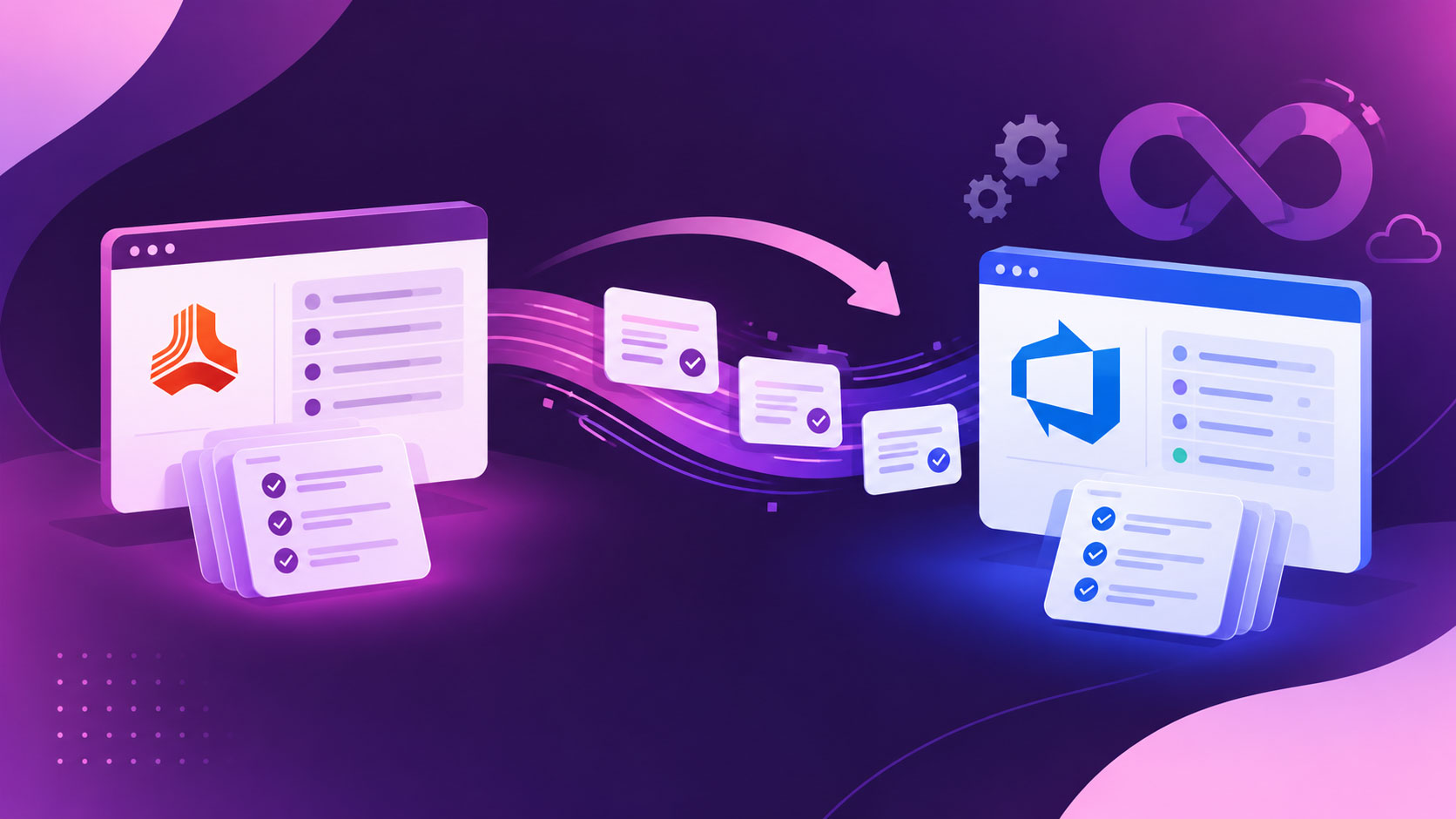
From DOORS to Azure DevOps, the First 90 Days With Modern Requirements
Moving from IBM DOORS to Azure DevOps? Here is what...
On most projects, requirements shift as work progresses. Without a fixed reference point, scope quietly drifts and teams lose track of what was actually agreed on. A requirement baseline solves this by freezing a set of requirements at a specific moment in time.
In this guide, we’ll walk through what a baseline is and how to create one inside Azure DevOps, step by step.
Points clés
Want to see if it fits your workflow?
Get a DemoA requirements baseline is a point-in-time snapshot of a reviewed and approved set of requirements. You can think of it as the signed-off copy of your requirements at a given milestone, whether it could be a sprint or a release. Once a baseline is created, that snapshot of requirements stays frozen regardless of how requirements change after that, and it serves as the basis for further work.
To make changes in the baseline, teams need to follow the programmatic change control process. Decision makers use baselines to check what was agreed upon and what needs to be changed, and make timely decisions to modify the planned functionality.
Teams commonly create baselines for:
Without a baseline, teams generally use spreadsheets and Microsoft Word documents to take a snapshot of requirements, but this habit breaks requirement versioning, makes traceability hard, and becomes out of sync.
Short answer: no.
Azure DevOps stores and tracks the version history of individual work items. Every time any requirement is changed, Azure DevOps automatically logs a new revision, which is useful for tracking what is changed, by whom, and when.
But it stops here.
You can’t create immutable requirement snapshots in Azure DevOps that actually lock an entire set of requirements. For example, there is no way to pick a few features and user stories at the sprint sign-off, freeze them, and compare that state against what the spec looks like 8 weeks later. Also, it has very limited functionality to copy requirements across projects.
We’ve noticed that some technical readers may point out that the analytics service in Azure DevOps writes daily historical snapshots. That’s very true. But those snapshots run on an automated daily cycle, not captured at a milestone you define. Also, they aren’t named artifacts tied to a release or sprint, and they can’t be compared, merged, or reused across projects.
So, the baseline creation gap is real in Azure DevOps.
| Work Item Revision History (Native ADO) | Requirements Baseline (MR4DevOps) | |
|---|---|---|
| Portée | One work item at a time | ✓A whole set of requirements |
| It answers | What has changed, and who changed. | ✓What did the full specs look like at sign-off and currently? |
| Locked Snapshot | No | ✓Yes, immutable once captured |
| Compare Two Points in Time | Manual, per item | ✓Built in, set vs. set |
| Audit-Ready Report | No | ✓Word Difference Report (Summary or Detailed) |
| Reuse Across Projects | Very limited | ✓Copy and merge are supported |
| Capture Trigger | Automated daily by ADO Analytics | ✓On demand, at a milestone you define |
| Merge Two Snapshots | Not possible | ✓Merge two baselines into a third |
Step 1: Once the Modern Requirements4DevOps extension is installed within Azure DevOps, you will directly see “Baseline” within the Azure DevOps side panel. You can open it directly from there.
Here, you can see all baselines and create folders to organize them.
Step 2.1: Next, click on the “New Baseline” button in the top bar. Then, enter the title and description for the baseline. Then, click next.
Step 2.2: Here, you can select work items to add to the baseline using ADO queries, by searching using ID or title, or by using the created date filter. After that, click on “Create” to create a new baseline with selected work items.
Step 3: Before you save the baseline, use “Set Version” to pin individual work items to a specific historical revision. Or use “As of Date” to set the entire baseline to how all work items looked on a particular date.
Here, you can also remove and edit work items.
Step 4: Once everything looks right, click “Save”.
Step 5: Once the baseline is created, you can compare it with the current version, other baselines, or ADO queries. It clearly shows what has changed and what has not.
You can also export a difference report in Microsoft Word or PDF format.
Step 6: If the baseline is updated and needs to be sent for review, users can directly start review from the current baseline.
MR NextGen also allows teams to share baselines from one project to another.
Users can click on the “Copy Baseline” button and set the project where they want to copy the baseline and select particular work items from the existing baseline to add to the copied baseline. That’s all it takes to copy the current baseline into another project.
Furthermore, if you want to import any particular baseline from another project, click “Reuse” from the Baseline browse page, select the source project, pick the baseline you want to pull from, and select your work items.
Best part: It also maintains a traceable link back to the source. You can visit the “details” tab to track the original source of the current baseline and baselines that are all copied from the current one.
Teams working in the regulated industries, such as finance, healthcare, aerospace, etc., are required to prove which requirements were approved, who approved them, and when. Furthermore, standards like FDA 21 CFR Part 11, ISO 13485, IEC 62304, and DO-178C all expect this kind of evidence, whether it’s audit trails for electronic records or full traceability from requirement to test.
In such scenarios, the immutable baseline is used as a reference point to prove adherence to regulatory standards, prevent scope creep, and avoid legal penalties due to non-compliance. Also, by locking compliance requirements in your organization, you ensure that everyone, including third-party vendors, follows the same requirements and regulations.
No, a baseline can’t be edited after it is created, as it is immutable and holds the version captured at the time of creation. That’s what makes it reliable as an audit reference.
It allows teams to create baselines directly from Smart Doc or the review module within Modern Requirements4DevOps and the ADO backlog. This way, users can create a baseline directly from where they are working.
Yes, Modern Requirements4DevOps inherits permissions from Azure DevOps. Also, it doesn’t store any of your data, and everything stays within your ADO workspace. So, there is no data and security risks are associated with Modern Requirements4DevOps.
✅ Définir, gérer et tracer les exigences dans Azure DevOps
✅ Collaborez sans effort entre les équipes réglementées
✅ Commencez GRATUITEMENT — pas besoin de carte de crédit
Moving from IBM DOORS to Azure DevOps? Here is what...
Stop managing requirements manually. Start delivering smarter, with AI built...
Learn what DO-326A requires, how it differs from DO-178C, and...
End-to-end requirements management in Azure DevOps.

AI-powered assistance for DevOps workflows.

Autonomous AI agents for DevOps execution.

Real-time data sync across tools and systems.