Modern Requirements4DevOps V1: Introducing Smart Import and Diagramming
Manage and organize software requirements efficiently with Azure DevOps and...
Modern Requirements4DevOps includes the ability to generate test hub information reporting and trace analysis. Users can generate Smart Reports and Horizontal Traceability Matrix on Test Plans, Test Suite, Test Cases, Test Runs, Test Case Run, and Test Case Step Run details. Since much of the information in Test Hub is not based on work items and links, Modern Requirements introduced the concept of virtual work items and links to abstract the data into work items and links on which reports can be generated. This is a quickly evolving set of functions with new data being exposed from Azure DevOps as virtual Work Items and Links so that users can generate Smart Reports & Traceability Reports. This reduces the testing effort, improves resource utilization, speed, and quality of the tests.
In the simplest form, the test case management software consolidates several aspects of testing into one place. This
reduces the testing effort, improves resource utilization, speed, and quality of the tests.
Most often, the tools differ in their scope, ability, effectiveness, flexibility, and more. While some organizations settle on one comprehensive solution, others opt to use a combination of different tools.
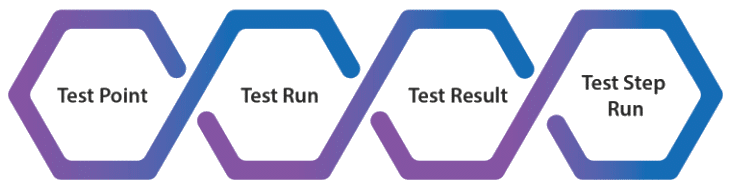
The normal testing hierarchy supported by Azure DevOps is as following:
Whereas organizations normally have a more comprehensive Test Case Management as illustrated below:
The Requirement work item will be available when Requirement suite is created from the Test Hub.
Note: The Requirement work item is supported in Trace Analysis
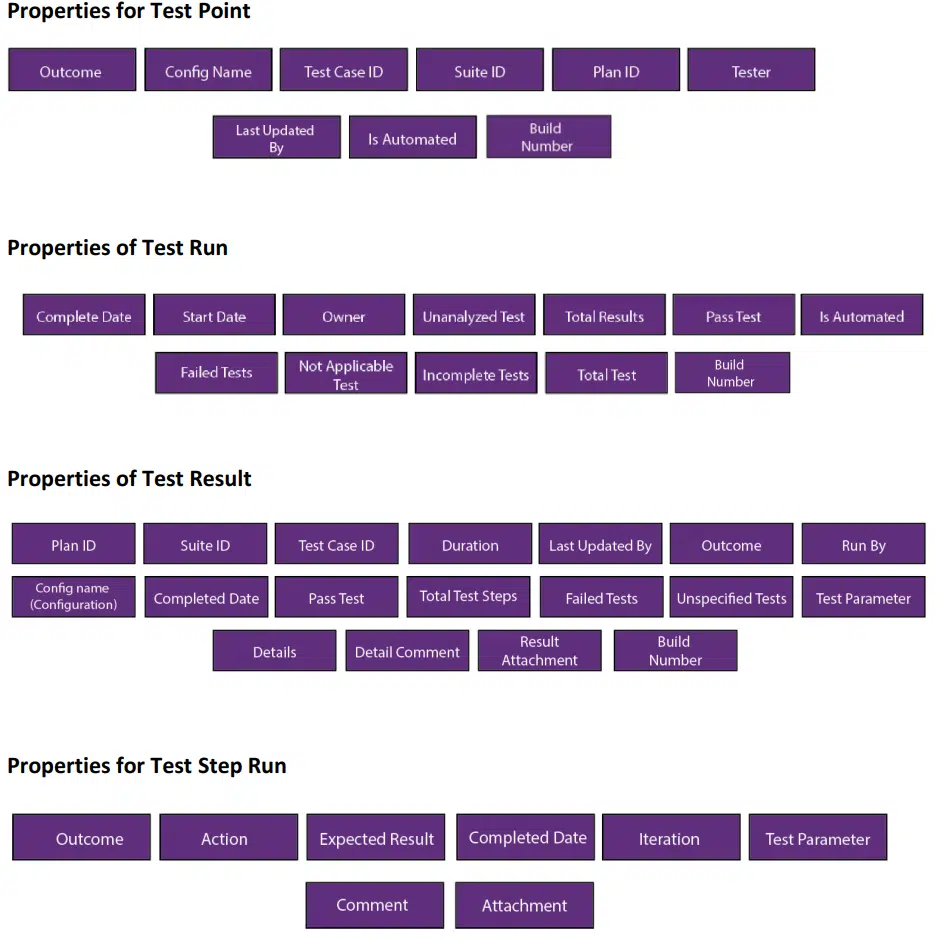
In Azure DevOps, the data for these virtual work items can be fetched from TFS using the following tabs:
These Virtual work items are linked with existing work items using Virtual Link.
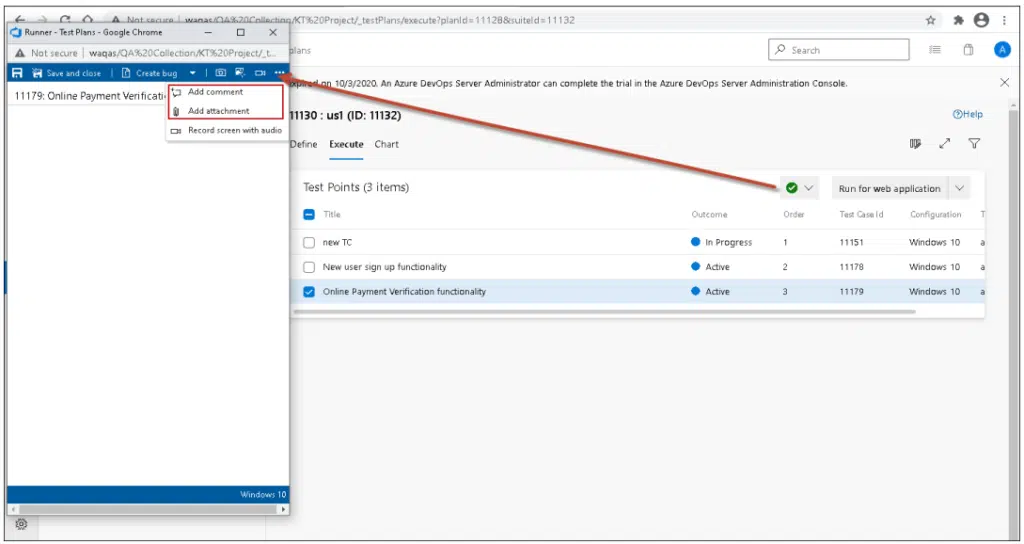
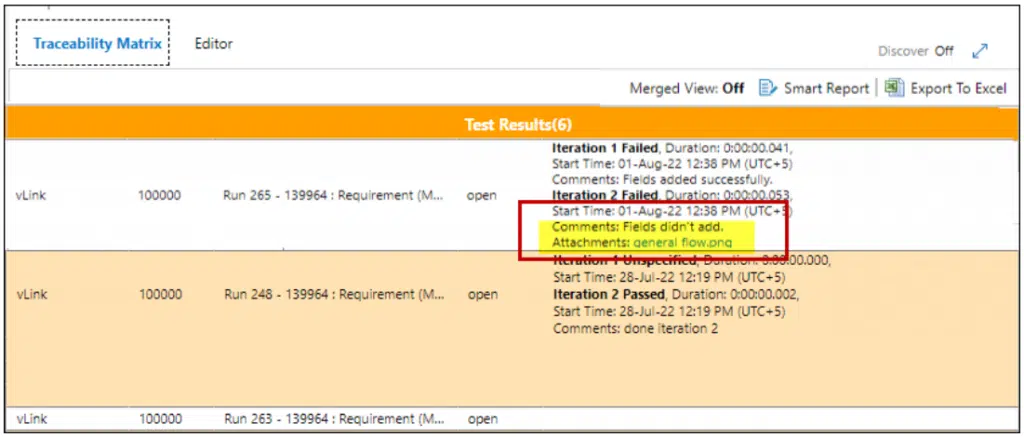
Comment and attachment added from test run are mapped in test results virtual work item.
Comment for fail step added in “Comment” field of Test Step Run in Trace Analysis and Smart Report.
Configuration can be seen mapped below in test results.
User can take screenshot from the Capture screenshot option as shown in the image below.
The captured screenshot can be seen in ADO mapped as an attachment. Users can download the captured screenshot by clicking on it.
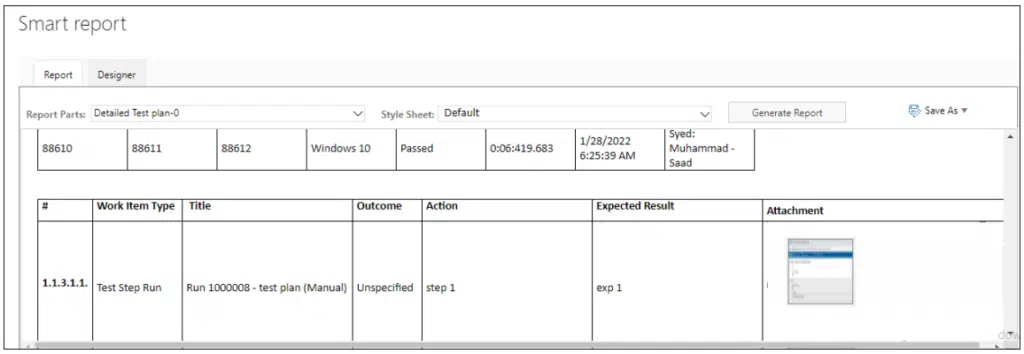
The captured screenshot can be seen as an attachment in the Smart Report. Users can download the attachment by clicking on it.
The options Capture user actions, Record Screen, and Record screen with audio are supported in the Test Result virtual work item. Once a user adds these attachments from ADO, they will be visible in the Smart Report/Trace Analysis section of the Test Result work item under the “Result attachment” property.
For multiple iterations, Comments and Attachments added in each iteration is shown. On run test case, if there are multiple iterations, user can add comments in each iteration which can be seen by adding “Details” field from column options in Trace analysis and through “Report Designer” in Smart Report.
Comments and attachments added against each iteration can been seen in the “Summary” section.
Comments and Attachments added by the user against each of the iterations will be visible in the Traceability Matrix.
By adding “Details” field from the column options, comments and attachments for each iteration can be seen in “Report Designer” in Smart Report.
Parameter added in Test case steps can be seen by adding “Test Parameter” field from column options in Trace analysis and through “Report Designer” in Smart Report.
Comments and Attachments added by the user against each of the iterations will be visible in the Traceability Matrix.
By selecting the “Test Parameter” field from column options, user can see “Parameters” column in Smart Report.
In Smart Report, the virtual linking is automatically applied. However, in Trace Analysis you need to manually select the Virtual Link option to link the Virtual work items as shown in the image below:
The hierarchy below can be created and shown in Smart Report as well as while working in Traceability module:
Test Plan vs Test Suite vs Test Case/Test Point vs Test Run vs Test Result vs Test Step Run vs Bugs
Same hierarchy can be created while showing the work in Trace Analysis.
Following are the different paths you can define to generate the output:
These work items can be used in the following modules/sections:
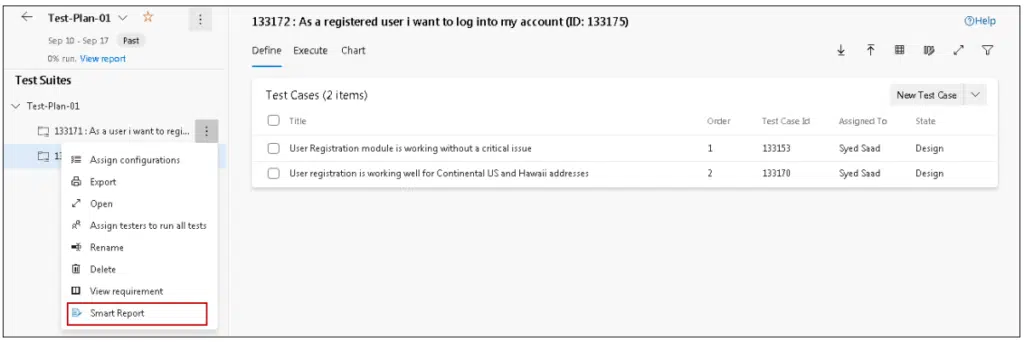
Virtual work items can be used in Smart Report available under the Queries tab, Test Hub and Smart Docs.
In the Traceability module, these virtual items can be used to create a horizontal matrix using:
✅ Defina, gestione y realice un seguimiento de los requisitos en Azure DevOps
✅ Colabore sin problemas entre equipos regulados
✅ Empiece GRATIS, sin necesidad de tarjeta de crédito
Manage and organize software requirements efficiently with Azure DevOps and...
ISO 24089 governs automotive software update engineering and supports UNECE...
Modern Requirements4DevOps wins Gold in the ALM, SCM and Requirements...
End-to-end requirements management in Azure DevOps.
AI-powered assistance for DevOps workflows.

Autonomous AI agents for DevOps execution.

Compliance management, built into Azure DevOps.
Real-time data sync across tools and systems.