Managing requirements documentation efficiently is key to successful project execution. In this blog post, we’ll explore how to seamlessly import Microsoft Word documents into Smart Docs using the Word import functionality.
Understanding the Word Import Functionality
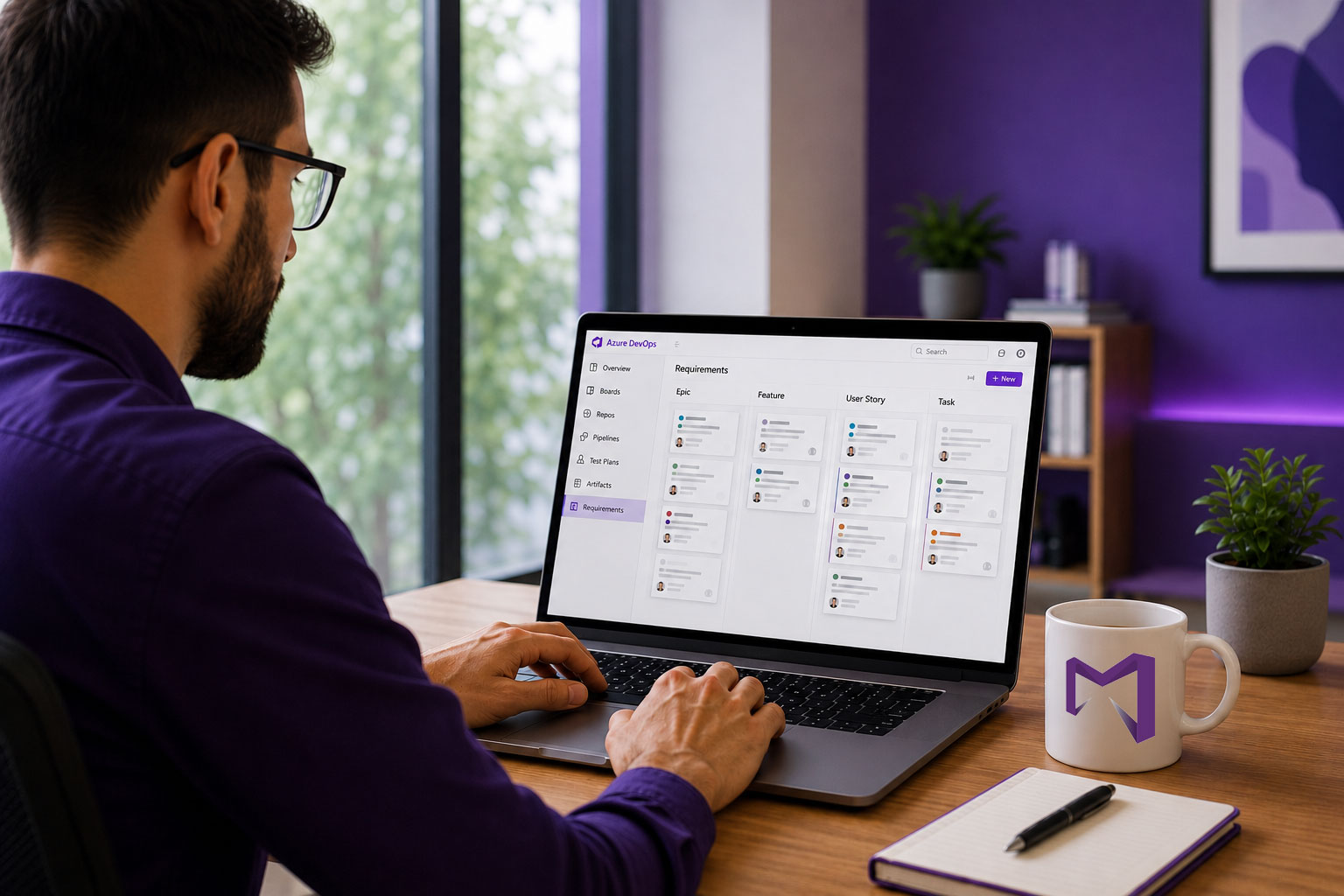
Smart Docs makes it simple to convert structured Word documents into dynamic work items. To begin, users must define how each heading level in the document maps to different work item types. Typically, Heading 1 becomes a section, Heading 2 an epic, Heading 3 a feature, Heading 4 a user story, and Heading 5 a task. Ensure your project supports these work item types by checking the configuration panel.
Creating a Custom Rule Set
To start the import, access the Word Import option in the Smart Doc module. Here, users can upload their document and either select a default rule set or create a new one. Creating a custom rule set allows you to define how each heading should be processed and what fields the content should map to—such as the description or custom fields. You can also maintain traceability by linking related items and choose to import paragraphs, tables, or both.
Importing and Finalizing
Once your rule set is configured, upload the document and apply your rule set. Review the preview to confirm the heading levels are correctly mapped. After validation, you can finalize the import by selecting a Smart Doc template to structure the output. Work items will then be automatically created based on the Word document’s content.
For more information, Smart Docs provides a Rule Set Configuration guide available on the Discover page. By leveraging this powerful feature, teams can save time and ensure consistency in their requirement documentation.
Still having issue in importing your Word Document to Smart Docs? Download our Step-by-Step PDF guide, which will help you import your Word document seamlessly.
Inhaltsverzeichnis
Beginnen Sie noch heute mit der Nutzung von Modern Requirements.
✅ Definieren, verwalten und verfolgen Sie Anforderungen innerhalb von Azure DevOps ✅ Arbeiten Sie nahtlos mit regulierten Teams zusammen ✅ Starten Sie KOSTENLOS – keine Kreditkarte erforderlich