Why Compliance Costs Small Banks 3x More, and the Part You Can Fix
Small banks spend 3x more of their budget on compliance....
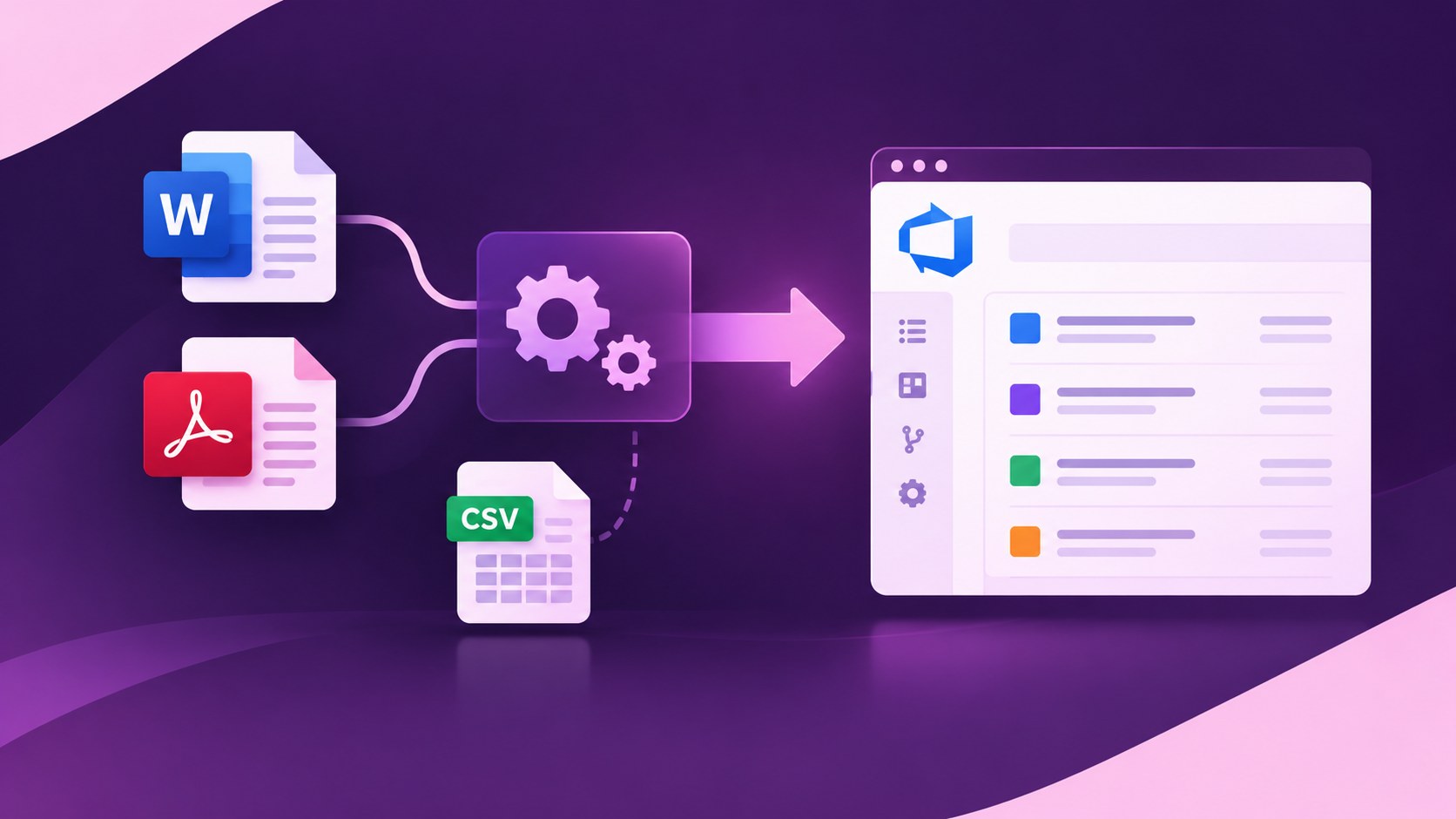
You already have product requirements, and they exist in a Word specification, a PDF from a supplier, or an export tool that you are leaving. Now, to get started with development using these requirements, you need to import them as work items inside Azure DevOps.
If you have already tried to import a Word document into Azure DevOps, you found that its bulk import accepts only CSV files, which means you and your team need to manually create each ADO work item by copying and pasting content and setting relationship types between them. That is time-consuming and introduces errors.
In short, Azure DevOps has no built-in way to import a Word or PDF document as work items. However, Modern Requirements4DevOps’s Smart Import module reads the document directly and maps its headings, tables, and lists to work item types and converts the document into work items with a few clicks.
In this blog, let’s cover how CSV import and Smart Import from Modern Requirements4DevOps work within Azure DevOps and their use cases.
Why native import falls short: Azure DevOps bulk import accepts only CSV files, so Word and PDF requirements need manual conversion
How CSV import works: the steps to bring work items into Azure DevOps natively, including how to set hierarchy
Where native import stops: limits on volume, relationship types, states, and test cases
How Smart Import works: map headings, tables, and lists from Word and PDF documents to work items in eight steps
Which method to choose: when CSV import is enough and when Smart Import is the better fit
Before we see how document import works inside Azure DevOps, let’s look at why and when teams need to convert existing requirements documents into Azure DevOps work items:
Azure DevOps supports bulk work item import through CSV files only. If you have requirements in a Word document or PDF, you need to start creating an Excel sheet from that document. Here are the steps for that:
In the next section, let’s look at how the above challenges can be solved using the Smart Import module of Modern Requirements4DevOps.
Modern Requirements4DevOps is a requirements management tool that works directly inside Azure DevOps. Its Smart Import module allows teams to import requirement documents and create an ADO work item hierarchy based on the heading hierarchy in the document. Let’s see how it works:
Step 1: Open the Smart Import module from the Azure DevOps side panel and start a new import.
Step 2: Upload different types of files, including .docx, .dotx, .doc, .dot, .docm, .dotm, and .pdf; it accepts a file size of up to 50 MB. Here you can upload an SRS functional requirements document, a non-functional requirements document, a BRD, meeting notes, or anything.
Step 3: Once the document is uploaded, parse that document.
Step 4: In the Map & Classify stage, decide how each section should appear in Azure DevOps. For example, you can map Heading 1 to Epic, Heading 2 to Feature, and Heading 3 to User Story. You can also map table rows to individual work items and assign columns to fields such as Title, Description, or Priority. If your documents follow different formats, you can create conditional rules based on heading text, levels, or patterns. Save these mappings as reusable rule sets for future imports.
Step 5: After that, exclude work items that are not required so we don’t import unnecessary work items. Also, for each work item, you can change or edit the title, area path, iterations, priority, state, and everything before importing these work items.
Step 6: Now, you may already have epics, features, or user stories in your Azure DevOps project that you need to connect with these particular work items through any relationship, like parent, child, affected by, etc., which you can do directly here for every work item.
Step 7: Before importing, you can review the map results. Smart import flags potential duplicates, unclear mappings, and missing requirement fields so that you can make corrections before inserting anything into Azure DevOps.
Step 8: Finally, import these work items.
You can clearly see that work items are imported into Azure DevOps with a few clicks. This gives Business Analysts and Systems Engineers a way to work with existing specifications without manually rebuilding every requirement.

| What you need to do | Azure DevOps CSV Import | Modern Requirements4DevOps’s Smart Import |
|---|---|---|
| Import from a Word document | You must first convert the content into a CSV file. | Import .docx files directly. |
| Import from a PDF | You must extract the content and arrange it in CSV format. | Import .pdf files directly. |
| Import from an existing spreadsheet | Works well when the data is clean and properly arranged. | Can also work with supported document content, but CSV may be simpler for this case if work items don’t have relationships except parent-child. |
| Create parent-child relationships | Supports parent-child hierarchy through indented title columns. | Lets you map document headings to work item types and set parent-child links. |
| Import tables | You need to arrange the table data into CSV rows and columns. | Map table rows to individual work items and columns to work item fields. |
| Retain document images and content structure | Does not retain the original document layout as work item structure. | Can extract images and document elements for use during import. |
| Best suited for | Clean spreadsheets with fewer than 1,000 work items and simple hierarchies. | SRS, BRDs, supplier specifications, and other Word or PDF documents with headings, tables, and nested sections. |
After reading this guide, it’s clear to you when to use CSV import and Smart Import from Modern Requirements4DevOps. In short, importing existing requirements or migrating from an older tool to Azure DevOps should not mean creating every work item from scratch manually.
The Smart Import feature can be used in regulatory industries also, as it allows teams to review work items and potential issues before importing work items so that they can avoid any troubles before work items are created in Azure DevOps.
Have a requirements document ready? Book a Modern Requirements4DevOps demo and see how Smart Import can help your team bring its content into Azure DevOps.
There are no strict limits. Even if the document contains thousands of requirements, it can be imported with a few clicks in a single import.
Yes, you can import test cases directly using Smart Import. Unlike CSV import, you don’t need to go to the Azure Test Plan and import test cases separately.
Yes, teams working in regulatory industries can prepare compliance requirements documents and import them directly into Azure DevOps and connect those compliance requirements with development requirements.
Small banks spend 3x more of their budget on compliance....
DORA auditors now want proof, not policies. See what evidence...
Learn what NIST CSF 2.0 is, its six functions, and...
End-to-end requirements management in Azure DevOps.
AI-powered assistance for DevOps workflows.
Autonomous AI agents for DevOps execution.
Compliance management, built into Azure DevOps.
Real-time data sync across tools and systems.