Skip to content
Copilot4DevOps · Learning Hub

Learn Copilot4DevOps
one module at a time.

Step-by-step video tutorials for the AI assistant built natively into Azure DevOps. Pick a module, press play, and watch it work inside your project.

31Tutorial videos
13Modules covered, from Dashboard to AI Edit

Copilot4DevOps Tutorials

All 31 tutorials, grouped by category. Click any video to watch it right here on the page.

Start here

Dashboard

1 video
Full video
Project Overview in Azure DevOps

Every project needs one place to see what is happening. The Copilot4DevOps Dashboard gives you that view inside Azure DevOps.

  • Opening the Copilot4DevOps Dashboard
  • Reading the project overview
  • Jumping from the dashboard into each module
Refine & Transform

Elicit

3 videos
Part 1
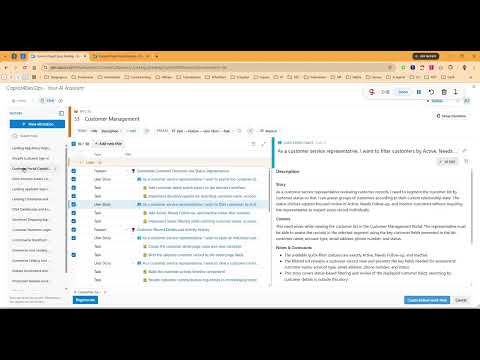
Generate Work Items with AI

Requirements rarely start as requirements. Elicit in Copilot4DevOps builds structured work items from your source material.

  • Starting an elicitation in Azure DevOps
  • Generating candidate work items
  • Reviewing before anything is published
Part 2
Refine and Publish Work Items

Part 2 of the Elicit walkthrough: refine what the AI drafted, then publish it to your backlog.

  • Editing and refining drafted work items
  • Publishing to Azure DevOps
  • Keeping a human in control of the backlog
Part 3
Elicitation History and More

Part 3 of the Elicit walkthrough: pick up where you left off and keep every elicitation on record.

  • Working with elicitation history
  • Restoring and continuing earlier sessions
  • Wrapping up the Elicit workflow

Analyze

3 videos
Part 1
Check Requirement Quality

Weak requirements are expensive. Analyze in Copilot4DevOps checks them against proven frameworks before they reach the team.

  • Opening Analyze on a work item
  • Choosing an analysis framework
  • Reading the results
Part 2
Spider View and AI Chat

Part 2 of the Analyze walkthrough: see quality at a glance in Spider View, then discuss the results with AI Chat.

  • Reading the Spider View
  • Following up with AI Chat
  • Acting on analysis findings
Part 3
Act on Analysis Results

Part 3 of the Analyze walkthrough: turn findings into better requirements.

  • Applying analysis suggestions
  • Re-running analysis after changes
  • Using Analyze in your quality gate

Generate

3 videos
Part 1
AI Work Item Generation

Start with an idea, finish with work items. Generate in Copilot4DevOps builds content from a prompt, grounded in your project.

  • Opening Generate
  • Writing an effective prompt
  • Reviewing generated content
Part 2
Refine Generated Content

Part 2 of the Generate walkthrough: shape the output until it fits.

  • Refining generated content
  • Adjusting options
  • Choosing what to keep
Part 3
Publish to Azure DevOps

Part 3 of the Generate walkthrough: move generated content into your backlog.

  • Publishing generated work items
  • Verifying results in Azure DevOps
  • Best practices for Generate

Convert

2 videos
Part 1
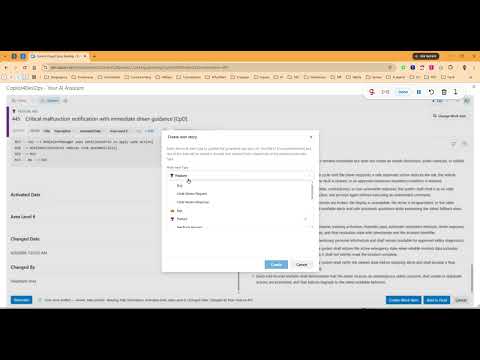
Convert Work Items with AI

Different teams need different formats. Convert reshapes content into the work item type you need.

  • Opening Convert
  • Choosing the conversion
  • Reviewing the result
Part 2
Publish Converted Content

Part 2 of the Convert walkthrough: finalize and publish converted content.

  • Refining converted content
  • Publishing to Azure DevOps
  • Convert use cases

Transform

3 videos
Part 1
Translate Work Items

Global teams need requirements in more than one language. Transform translates work item content inside Azure DevOps.

  • Introduction to Translate
  • Selecting a target language
  • Configuring translation settings
Part 2
Translation Settings

Part 2 of the Transform walkthrough: control exactly how content is translated.

  • Using system text blocks
  • Choosing translation output options
  • Managing translated content
Part 3
Review Translated Work Items

Part 3 of the Transform walkthrough: review and use translated work items.

  • Viewing translated work items
  • Checking translation quality
  • Next steps with Transform

AI Edit

1 video
Full video
Edit Work Items with AI

Stop copy-pasting between a chat window and your work item. AI Edit works directly in the work item tab in Azure DevOps.

  • Opening the AI Edit tab
  • Asking AI to refine a work item
  • Applying changes in place

Visualize & Design

Diagramming

3 videos
Part 1
Diagrams from Requirements

A diagram explains what a page of text cannot. Diagramming builds visuals from your requirements inside Azure DevOps.

  • Opening Diagramming
  • Generating a diagram
  • Reviewing the output
Part 2
Edit and Refine Diagrams

Part 2 of the Diagramming walkthrough: edit the diagram until it tells the story.

  • Editing diagram content
  • Refining with prompts
  • Choosing the right diagram type
Part 3
Save and Share Diagrams

Part 3 of the Diagramming walkthrough: keep diagrams with the work items they explain.

  • Saving diagrams
  • Sharing with your team
  • Diagramming best practices

Mockup

3 videos
Part 1
Visualize Requirements

A requirement everyone reads and nobody pictures the same way ships wrong. Mockup in Copilot4DevOps puts the picture next to the requirement.

  • Starting a mockup from a work item
  • Generating and reviewing a first version
  • Keeping the visual attached to the requirement
Part 2
Refine and Iterate

Part 2 of the Mockup walkthrough: take the first draft and shape it with your stakeholders in the room.

  • Refining a generated mockup
  • Iterating with prompts
  • Using mockups to get stakeholder feedback fast
Part 3
Save and Share in Azure DevOps

Part 3 of the Mockup walkthrough: keep every mockup with the work item it belongs to.

  • Saving mockups to work items
  • Reviewing saved mockups
  • Where Mockup fits in the requirements flow

Assistant & Support

AI Chat

4 videos
Part 1
Ask Your Azure DevOps Project

Stop clicking through queries to answer a question you could just ask. AI Chat talks to your Azure DevOps project directly.

  • Opening AI Chat
  • Asking questions about work items
  • Understanding the responses
Part 2
Work Items and Context

Part 2 of the AI Chat walkthrough: bring the right context into the conversation.

  • Adding work item context
  • Following up on answers
  • Getting more from each prompt
Part 3
Draft and Refine Requirements

Part 3 of the AI Chat walkthrough: use chat to draft, refine and act.

  • Drafting content in chat
  • Refining with follow-up prompts
  • Moving results into work items
Part 4
Tips and Best Practices

Part 4 of the AI Chat walkthrough: habits that make chat faster and more useful.

  • Practical prompting tips
  • Working across modules
  • Best practices

Q&A Assistant

1 video
Full video
Explore Topics in Azure DevOps

Stop hunting through work items for answers. The Q&A Assistant explores topics across your project content.

  • Opening the Q&A Assistant
  • Exploring topics
  • Getting answers from project content

Impact Assessment

2 videos
Part 1
Analyze Change Impact

Every change touches more than you expect. Impact Assessment shows what a work item affects inside Azure DevOps.

  • Opening Impact Assessment
  • Selecting an explanation method
  • Reading the impact analysis
Part 2
Act on the Results

Part 2: use the impact analysis to make better decisions about change.

  • Reviewing impacted work items
  • Custom instructions for assessments
  • Using results to plan and communicate change

Advanced Tools

SOP Document Generator

2 videos
Part 1
Create SOPs

Nobody enjoys writing standard operating procedures. The SOP Document Generator builds them from what is already in Azure DevOps.

  • Starting a document from work items
  • Choosing structure and content
  • Generating the first draft
Part 2
Refine and Export

Part 2: refine the generated SOP and get it out in the format you need.

  • Refining the generated document
  • Keeping documents current as requirements change
  • Exporting for audits and reviews
No tutorials match your searchTry a different keyword or clear the search.

Ready to put Copilot4DevOps to work?

Start a free trial or book a walkthrough and see it on your own Azure DevOps project.

Modern Requirements logo mark